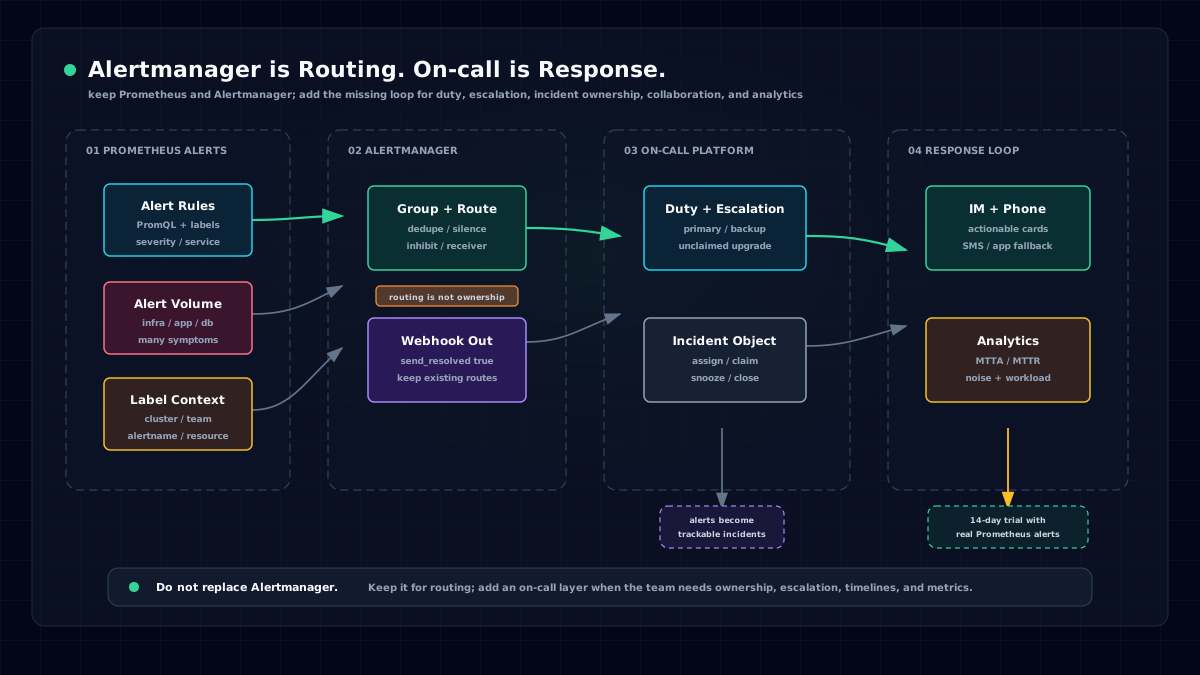

Why Do We Need Message Notifications?
When something important happens, we want to be notified through different channels. A few examples:
- The gas balance at home runs out, and you want an SMS or app notification.
- An API starts returning frequent 500 errors, and you want to know quickly so you can fix it.
- The company website uses a self-signed HTTPS certificate. To ensure availability, an end-to-end test checks certificate validity every day and sends a notification if it expires.
Why Use Flashduty Instead of Tencent Cloud, Alibaba Cloud, or Other Cloud Services?
Because those services can be expensive, often have no free quota, and require real-name verification. Flashduty is simpler to register for, does not require real-name verification, and includes a free quota.
Which Notification Channels Does Flashduty Support?
Flashduty currently supports phone calls, WeChat bots, WeCom, DingTalk, Feishu, SMS, email, Slack, Zoom, Telegram, and more. Additional channels are under development. Here is how to set it up in under five minutes.
1. Register for Flashduty
Open https://console.flashcat.cloud/login, receive a verification code, and you are done.
2. Configure a Notification Policy
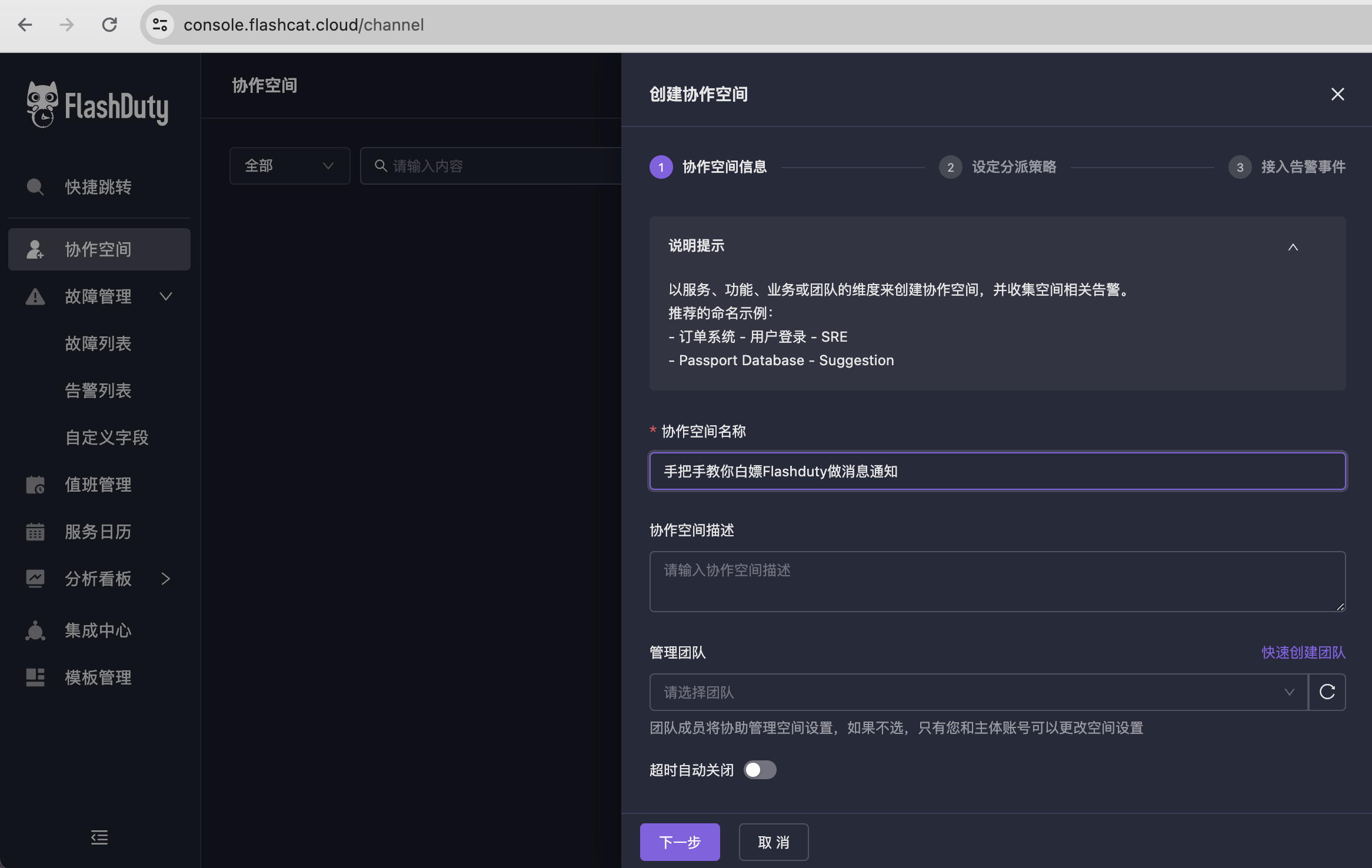
After logging in, go to https://console.flashcat.cloud/channel and click Create workspace. A workspace is the basic unit for notifications and collaboration. Flashduty is mainly used for collaborative OnCall handling of alert events, but here we only want to use its message channels for free, so creating a default workspace is enough. For newly registered users, Flashduty will guide you through this automatically. Just continue through the prompts.
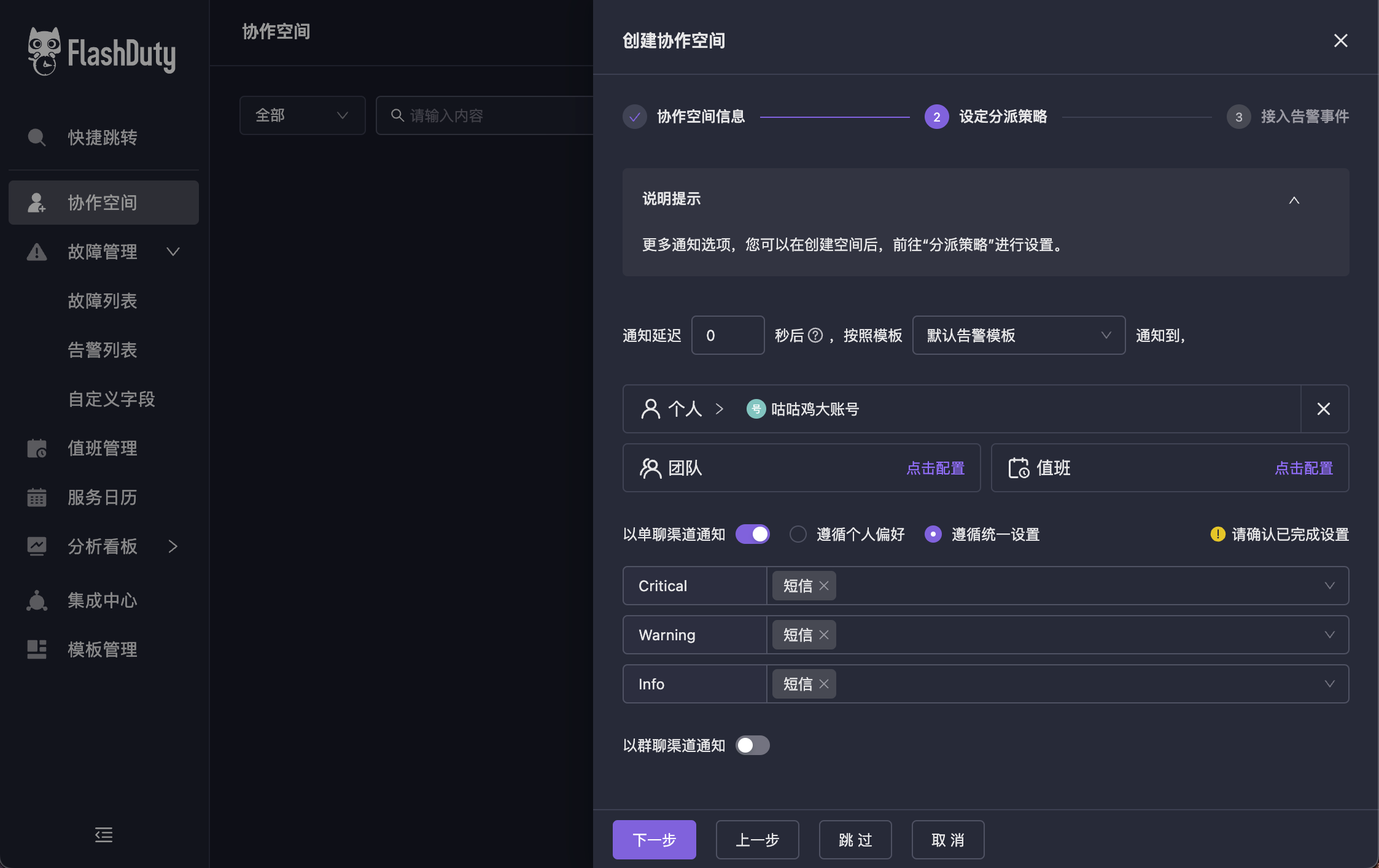
In the second step of workspace creation, configure the dispatch, or notification, policy as shown below. Flashduty's dispatch policy is very flexible. It can follow individuals or teams, and can set different priorities and IM channels. For simplicity, start with the configuration shown in the image and save it.
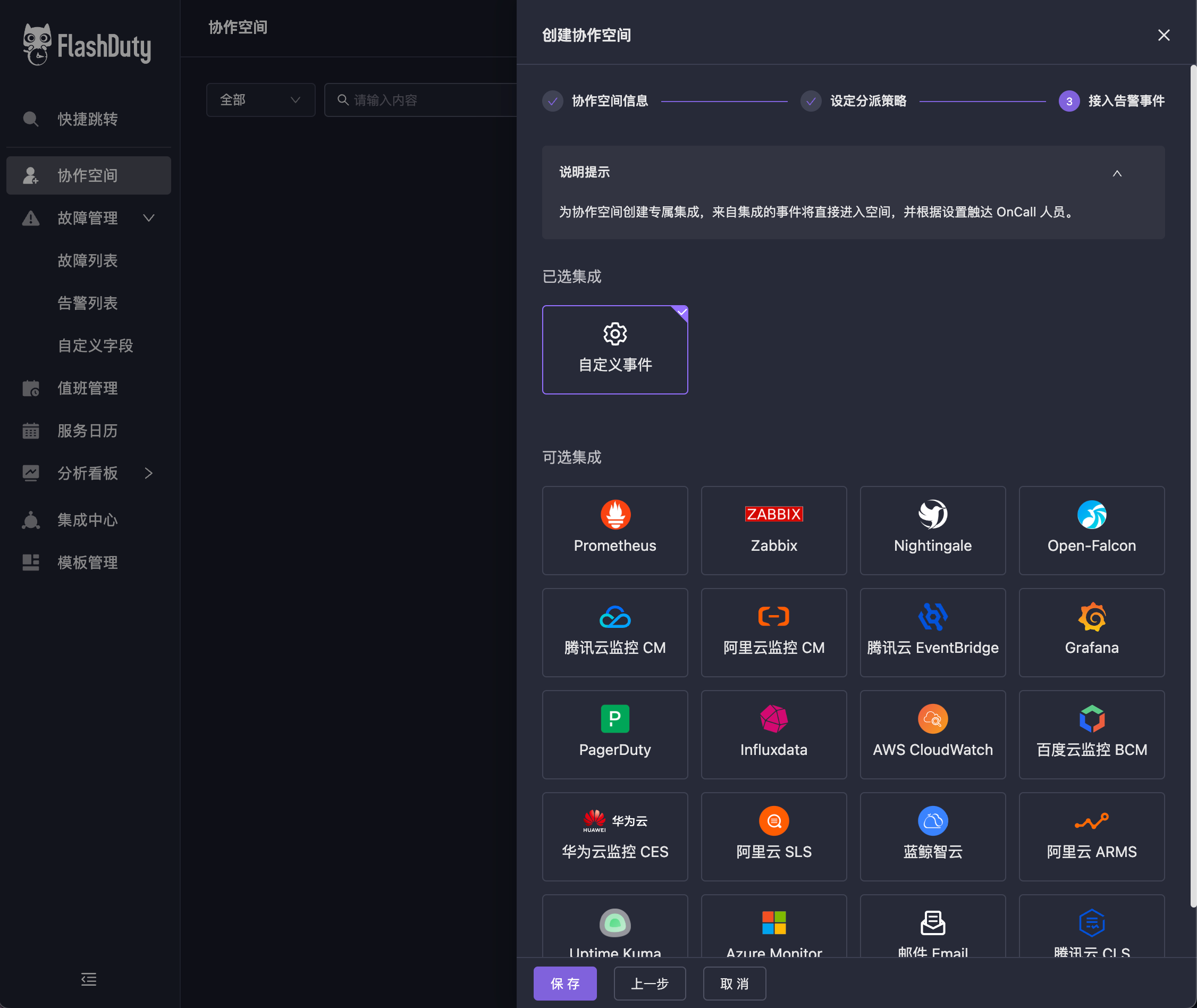
Select custom events and click Save. This generates a dedicated integration key for you. Every time you send a request to this address, Flashduty receives it.
3. Push a Message and View the Result
A simple curl request is enough. The content can be customized, and the received message template can also be customized.
curl -X POST 'https://api.flashcat.cloud/event/push/alert/standard?integration_key=04ed7d2d06d3549a8079489a1ad76b0xxx' \
-H 'Content-Type: application/json' \
-d '{
    "event_status": "Warning",
    "alert_key": "1",
    "description": "Test alert",
    "title_rule": "Use Flashduty for message notifications for free",
    "event_time": 1706614721,
    "labels": {
        "name":"guguji5",
        "env":"prod"
    }
}' -v
The result is shown below. The whole process takes under five minutes, so try it if you need this capability.