
Workspace Design Logic
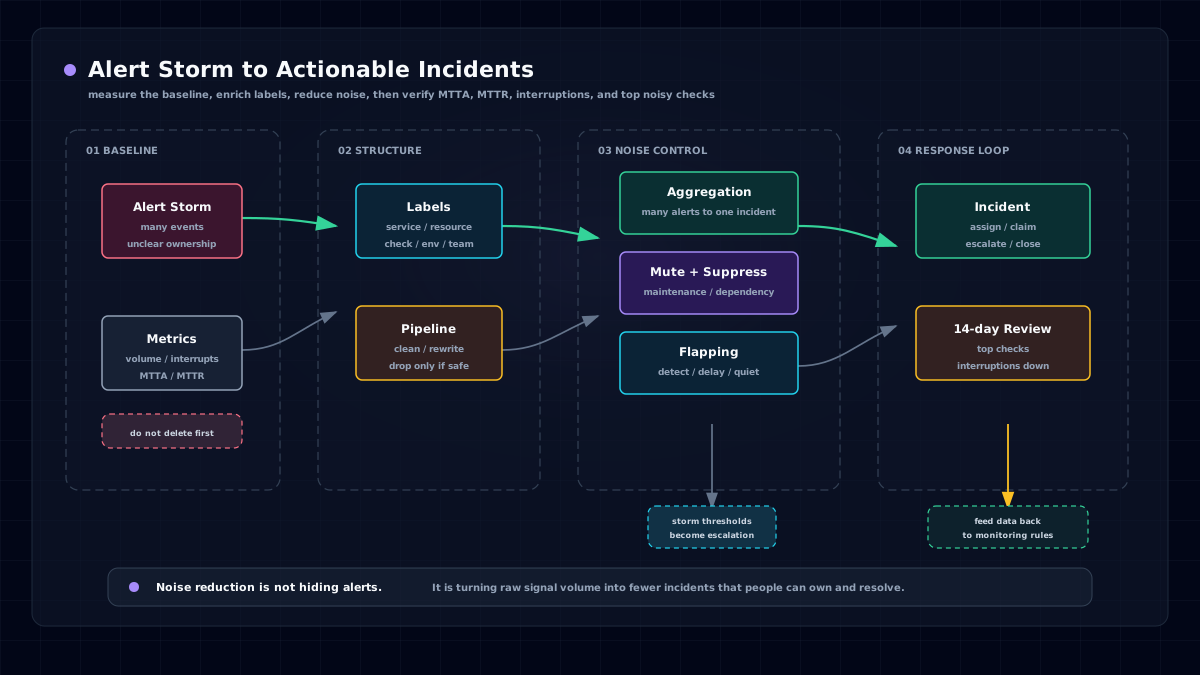
In simple terms: a company may generate thousands of alerts every day. Handling all of them on one page would be chaotic. Workspaces are usually divided by team, so alerts for different teams do not interfere with each other. Team members can be associated with On-call schedules, handle alerts only when they are on duty, and focus on longer-term work at other times.
If the business is relatively small, sending all alerts to one unified workspace is also fine.
Incident Escalation Logic
Suppose my workspace receives an alert: my service cannot call a third-party service. It may be a network problem, or it may be a third-party service problem. Multiple teams may need to collaborate. For this, Flashduty introduces incidents. You can escalate the alert event into an incident, bring in people from other teams, and let everyone comment, contribute troubleshooting clues, and add mitigation actions under the incident.
Incidents are global and can span all workspaces.
Alert Event Routing Logic
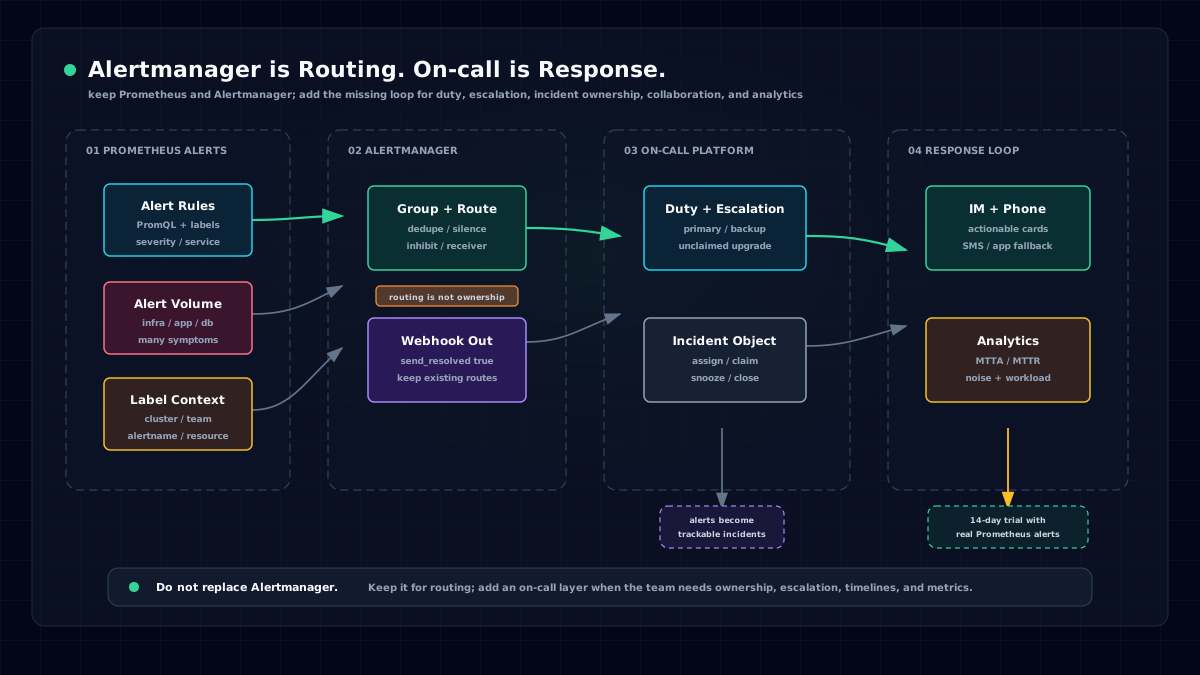
Most monitoring systems support Webhooks for third-party integration. Flashduty uses those Webhooks to connect with monitoring systems. Take Nightingale as an example: Webhooks can be configured in two places, globally or at the alert-rule level. Let's look at both.
Global Webhook
First, go to the Flashduty integration center and create a Nightingale integration:

Give it a name, such as "Nightingale test environment." After creating it, click the integration to open its detail page. The page provides an API address similar to:
https://api.flashcat.cloud/event/push/alert/n9e?integration_key=xxNotice the integration_key parameter in the URL. It is used for authentication. Configure this address in Nightingale's global Webhook, and alert events can be pushed to Flashduty.
But after the alert event arrives, which workspace should it enter? Each workspace needs subscription rules to subscribe to the alert events it cares about. The logic is:
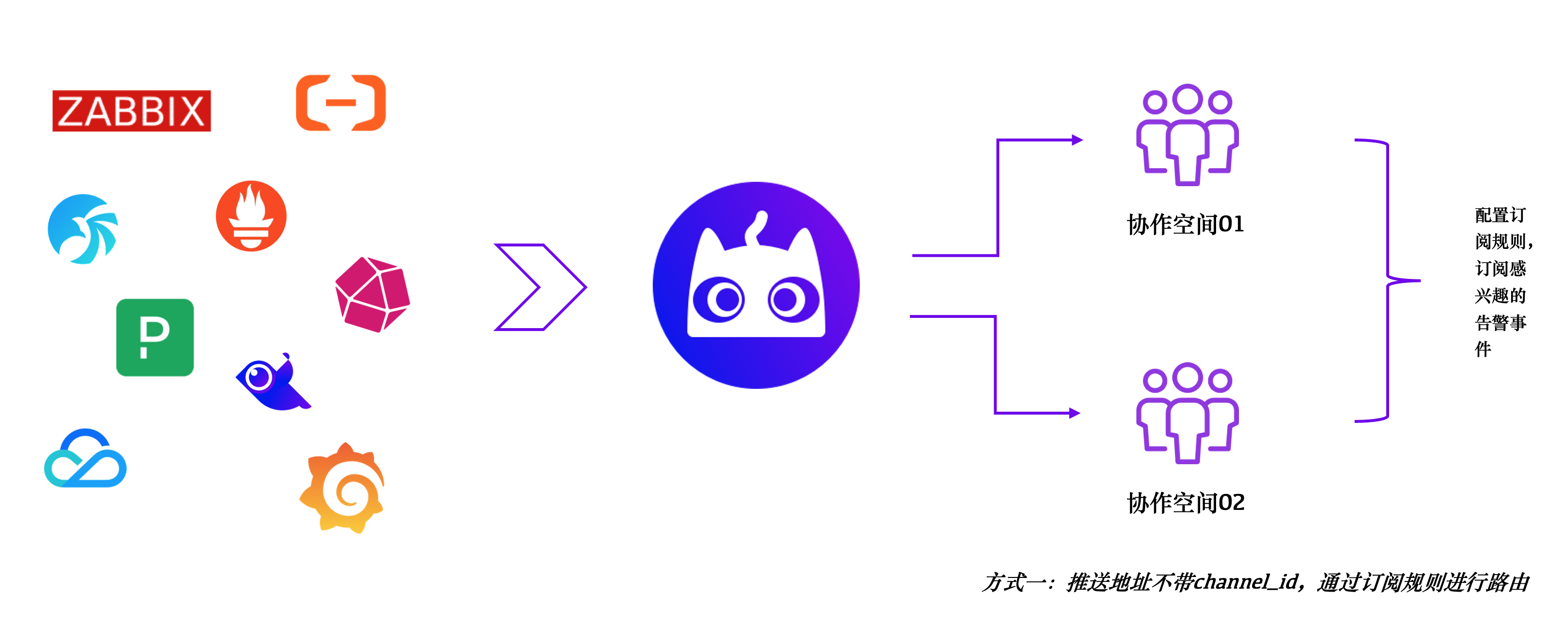
Webhook in an Alert Policy
Another integration method is using the Webhook inside an alert policy. Since the Webhook belongs to a specific alert policy, in theory we know which workspace should handle alerts from that policy. In this case, create a dedicated integration under the workspace:
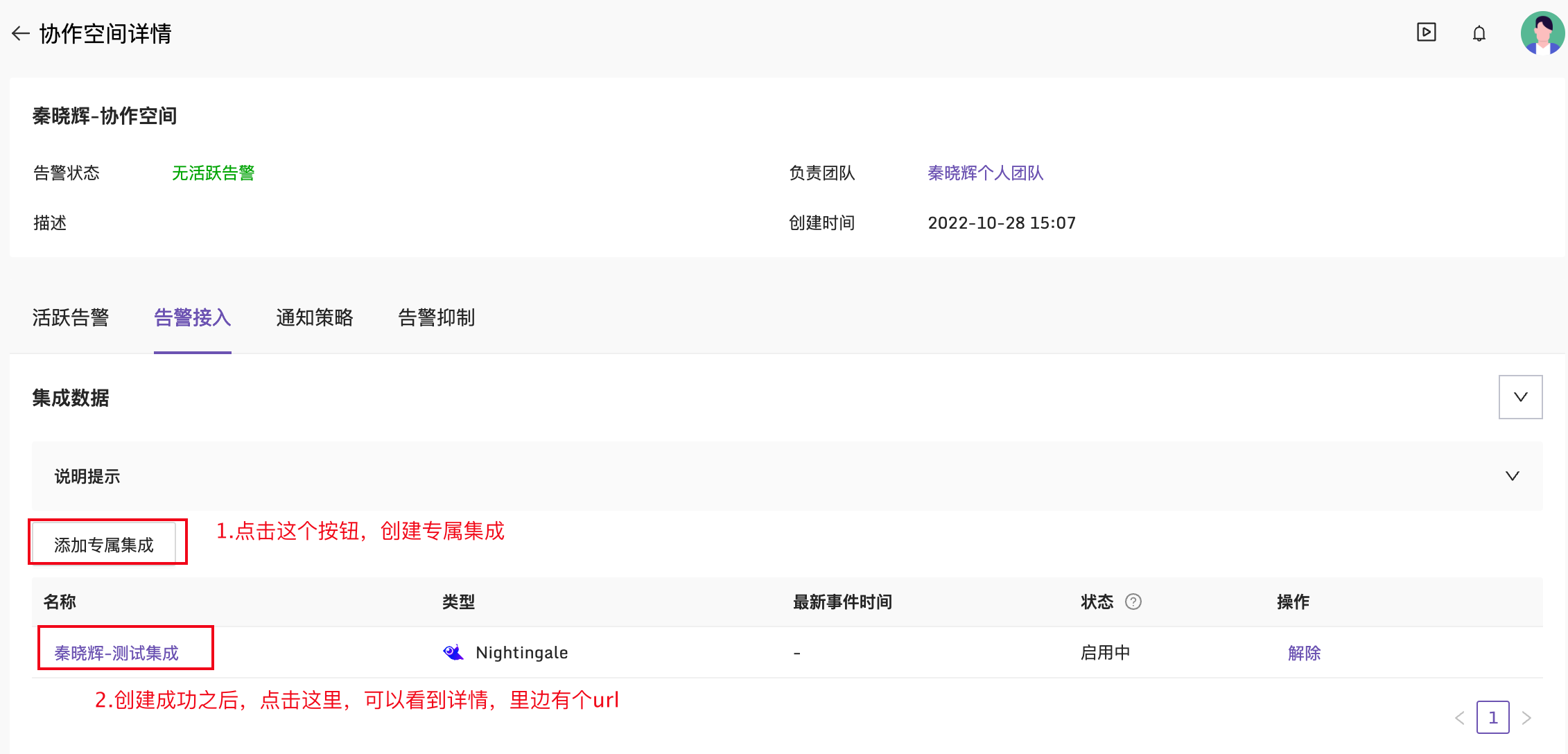
The dedicated integration URL looks like this:
https://api.flashcat.cloud/event/push/alert/n9e?integration_key=xx&channel_id=yyIt includes an additional channel_id parameter. channel means workspace, so the alert is routed directly to that workspace when pushed, without subscription rules. The logic is:
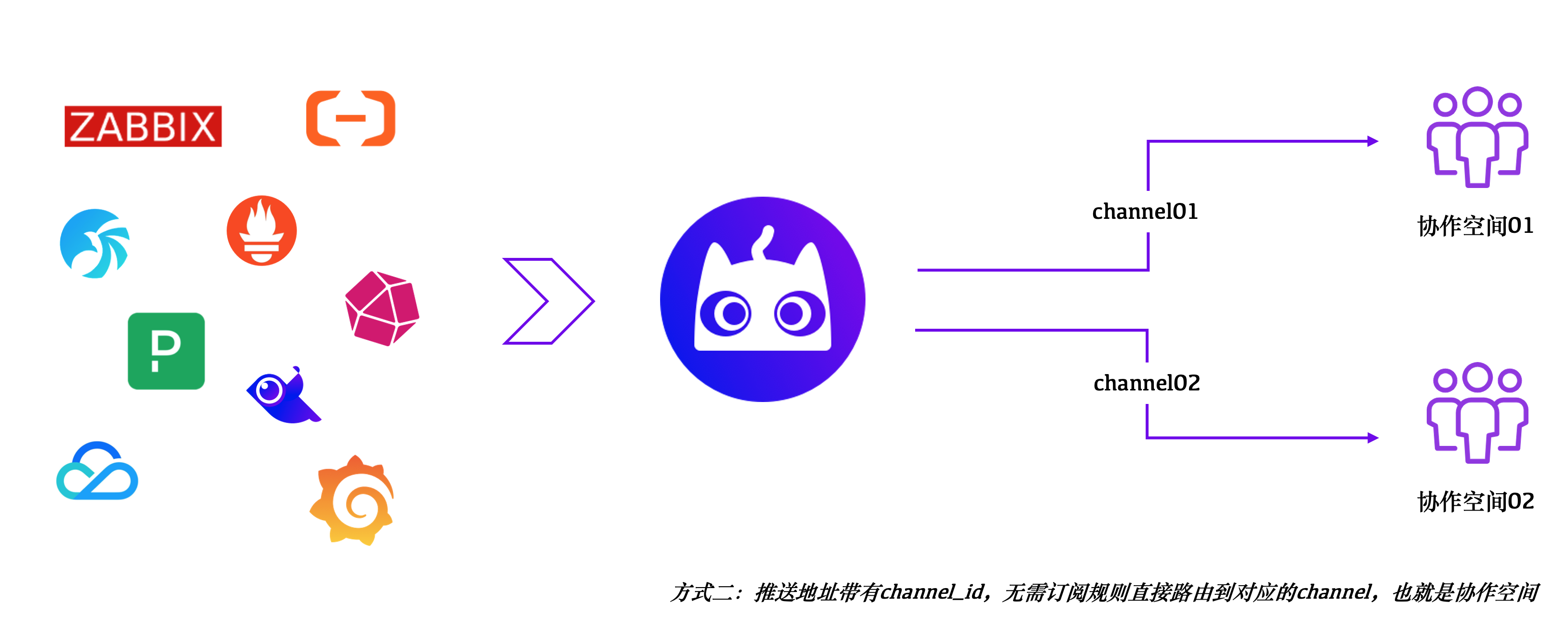
Getting Help
The upper-right corner of Flashduty has an entry for video tutorials.