
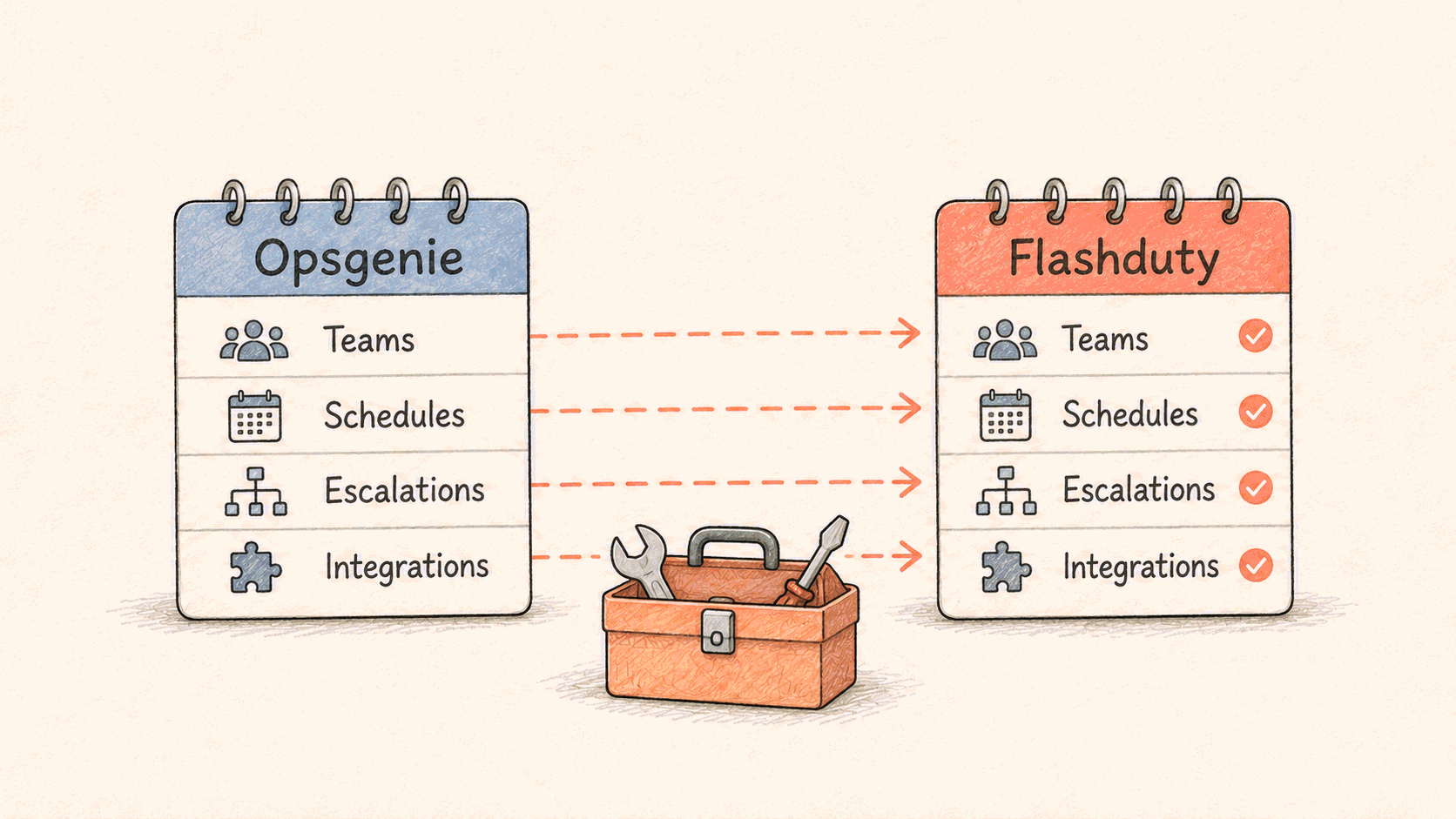
TL;DR: Atlassian stopped selling Opsgenie on June 4, 2025 and shuts it down on April 5, 2027, deleting any data not moved to Jira Service Management. Atlassian's in-app migration tool only leads to Jira Service Management. Moving to Flashduty is a rebuild, not an import: there is no automated Opsgenie importer. This guide covers the order of work: export your configuration through the Opsgenie REST API, map each Opsgenie object to its Flashduty counterpart, rebuild people, schedules, escalation rules, and integrations, run both systems in parallel with test alerts, then switch alert sources over one at a time and turn Opsgenie off.
For the decision of where to move in the first place, see Best Opsgenie Alternatives in 2026 and the Flashduty vs Opsgenie comparison. This page assumes you have picked Flashduty and need the steps.
The deadline
From Atlassian's Opsgenie licensing FAQ:
- End of sale, June 4, 2025. No new purchases, no plan upgrades or downgrades. Renewals are allowed only if the term ends before April 5, 2027.
- End of support, April 5, 2027. On that date "access to Opsgenie will be shut off, the product will no longer be accessible, and any customer data in Opsgenie that has not been moved to Jira Service Management will be deleted."
If you leave Atlassian, nothing is carried over for you. Export what you want to keep (configuration and alert history) while the API still answers.
How Opsgenie concepts map to Flashduty
The biggest structural difference: in Opsgenie, a team owns its schedules, escalations, integrations, and routing rules. Flashduty splits that into a team (a group of people) and a channel ("the smallest unit for managing incidents" that holds a service's alerts, integrations, escalation rules, and permissions). A typical Opsgenie team becomes one Flashduty team plus one or more channels.
| Opsgenie | Flashduty | Notes |
|---|---|---|
| Users, contact methods | Members, personal settings | Each member verifies their own phone and email |
| Notification rules | Notification preferences | Set per incident severity: Critical, Warning, Info |
| Teams | Teams + channels | People in teams; alerts, integrations, and escalation in channels |
| Services | Channels | One channel per service is a common starting point |
| Schedules, rotations | Schedules with layers and rotations | Time zone is fixed when the schedule is created |
| Schedule overrides | Overrides | An override fully replaces normal rules in its window |
| Escalation policies | Escalation rules | Live inside a channel |
| Team routing rules | Escalation rule conditions, or routing rules on shared integrations | |
| Integrations | Dedicated integrations (per channel) or shared integrations (Integration Center) | |
| Alert policies, integration actions | Alert pipeline | Clean, transform, and filter alerts at the integration |
| Maintenance | Silence rules | One-time, weekly, or service-calendar based |
| Alerts | Alerts | Events with the same alert_key merge into one alert |
| Incidents | Incidents | An incident is a group of similar alerts |
| Heartbeats | Silence detection on an integration | Partial match, see the gaps section |
| Forwarding rules | No equivalent | Use a schedule override for the absence |
API key (GenieKey) | APP Key |
Step 1: Export your Opsgenie configuration
Do this first, before anyone starts rebuilding. The export is your source of truth for the rebuild and your record after April 2027.
The Opsgenie REST API authenticates with an Authorization: GenieKey <your-api-key> header. The host is api.opsgenie.com, or api.eu.opsgenie.com for EU-hosted accounts. Use a key that can read configuration, and save every response as JSON.
| What to export | Endpoint |
|---|---|
| Users | GET /v2/users |
| Each user's contact methods | GET /v2/users/{id}/contacts |
| Each user's notification rules | GET /v2/users/{id}/notification-rules |
| Each user's forwarding rules | GET /v2/users/{id}/forwarding-rules |
| Teams | GET /v2/teams, then GET /v2/teams/{id} for members |
| Team routing rules | GET /v2/teams/{id}/routing-rules |
| Schedules | GET /v2/schedules?expand=rotation |
| Rotations | GET /v2/schedules/{id}/rotations |
| Overrides | GET /v2/schedules/{id}/overrides |
| Who is on call, by date | GET /v2/schedules/{id}/timeline |
| Schedule as a calendar file | GET /v2/schedules/{id}.ics |
| Escalation policies | GET /v2/escalations |
| Integrations | GET /v2/integrations, then GET /v2/integrations/{id}/actions |
| Heartbeats | GET /v2/heartbeats |
| Maintenance | GET /v1/maintenance |
| Alert policies | GET /v2/policies/alert?teamId={id} |
| Alert history | GET /v2/alerts (paged with offset and limit) |
| Incidents | GET /v1/incidents/ |
A minimal dump script:
OG=https://api.opsgenie.com
KEY=your-opsgenie-api-key
for path in users teams schedules escalations integrations heartbeats; do
  curl -s "$OG/v2/$path" -H "Authorization: GenieKey $KEY" > "opsgenie-$path.json"
done
Then loop over the IDs in those files for the per-user, per-team, and per-schedule endpoints. Two things that the API export does not give you and that you should write down by hand: which monitoring tools send to which Opsgenie integration (the sending side lives in those tools), and any Opsgenie behavior your team relies on but never wrote down, such as a person who is always the de facto second responder.
Step 2: Invite people and set up notifications
Flashduty members can be added by invite link or QR code, email, phone number, Open API, or SSO auto-provisioning. SSO supports SAML 2.0, OIDC, and CAS (LDAP on private deployments only). Then create teams and add members.
Then each member opens personal settings and does two things:
- Verify phone and email. Unverified numbers cannot receive SMS or voice; unverified email cannot receive email notifications.
- Set notification preferences per severity. For incident assignment, each of Critical, Warning, and Info can use voice, SMS, email, the Flashduty app, and IM apps. This replaces Opsgenie notification rules.
Install the Flashduty app. On iOS it uses Apple Critical Alerts, so Critical incidents can sound through silent mode and Do Not Disturb.
For chat, Flashduty has app integrations for Slack, Microsoft Teams, Lark, DingTalk, and WeCom, with interactive incident cards. Group chat webhook bots are also available for Lark, DingTalk, WeCom, Slack, Telegram, and Zoom; bots post links rather than interactive cards.
Step 3: Rebuild schedules
Use the .ics export and the rotation JSON side by side. In Flashduty, a schedule:
- Has a time zone set at creation that cannot be changed later. Match it to the Opsgenie schedule's time zone before you add anything.
- Contains one or more layers (for example a day shift layer and a night shift layer) that stack into the final plan. This is the counterpart of multiple Opsgenie rotations in one schedule.
- Rotates every 1 to 30 hours, days, weeks, or months. When the rotation adds up to one week, you can pick the handoff weekday and time.
- Supports a date mask (which weekdays a layer covers) and fair rotation, which reorders the rotation so the same person does not always land on rest days.
- Supports overrides for leave and swaps. An override fully replaces all normal rules in its window and then the normal rules resume.
- Can send handoff reminders N minutes before a shift change, and a daily "who is on call" message, to IM, SMS, or email.
After rebuilding, compare the next four weeks of the Flashduty calendar with Opsgenie's timeline output for the same dates. Mismatches usually come from time zones or handoff times.
Step 4: Create channels and escalation rules
Create a channel for each service or team you mapped in the table above. Inside it, rebuild each Opsgenie escalation policy as an escalation rule:
- Targets: a schedule (recommended), a team, individuals, or a mix.
- Escalation levels: if the current level does not respond, the rule escalates to the next level. The condition is "not closed" or "not closed and not acknowledged"; the timeout is at least 1 minute and defaults to 30 minutes.
- Repeat notification within a level, with an interval as short as 0.5 minutes and a maximum count.
- When it applies: always, a time window (for example weekdays 9:00 to 18:00), or a service calendar that excludes holidays.
- How it notifies: follow each member's personal preferences, or force a channel such as SMS for everyone.
- Matching: rules are evaluated top to bottom and stop at the first match, with filters on integration, severity, title, description, and labels. This is where Opsgenie team routing rules usually land.
Step 5: Connect alert sources
Each Opsgenie integration needs a Flashduty integration. Two kinds:
- Dedicated integration: created inside a channel; its alerts go to that channel.
- Shared integration: created in the Integration Center and distributed to channels by routing rules. A shared integration needs at least one routing rule, otherwise its alerts are dropped.
Common sources and their setup guides: Prometheus Alertmanager, Datadog, AWS CloudWatch, Grafana, Zabbix, and email. For your own scripts and anything without a dedicated integration, use the standard alert API, which also accepts arbitrary JSON through field and value mapping.
Flashduty does not accept the Opsgenie alert API format, so anything posting to api.opsgenie.com needs a new destination. It does implement the PagerDuty Events API v1 and v2: a tool that can already send to PagerDuty can send to Flashduty by changing the URL.
Alert noise settings live on the channel (noise reduction):
- Event aggregation is on by default for new channels: events with the same
alert_keywithin 24 hours merge into one alert. - Alert aggregation (alerts into one incident) is off by default, so each alert opens its own incident until you turn it on.
- Silence rules replace Opsgenie maintenance: one-time windows, weekly windows, or service-calendar days.
Step 6: Run both systems in parallel and test
Keep Opsgenie live and send each source to both platforms for a period. Then, per channel:
- Send a test alert to a standard alert integration, using the push URL from the integration's detail page:
curl -X POST '<push URL from the integration page>' \
  -H 'Content-Type: application/json' \
-d '{"event_status": "Critical", "title_rule": "Migration test: checkout API", "alert_key": "migration-test-1", "labels": {"service": "checkout"}}'- Check the right person is paged through the channel they configured, including a phone call at least once.
- Do not acknowledge, and confirm the next escalation level fires after the timeout.
- Close the test by sending the same
alert_keywith"event_status": "Ok". Without a recovery event the alert stays open. - Check overrides and handoffs on a real shift change.
If an integration shows no "latest event time" on its detail page, Flashduty has not received anything from that source; check the sending side first.
Step 7: Cut over and turn off Opsgenie
Move one alert source at a time, starting with a low-traffic one. For each:
- Point the source at Flashduty only.
- Watch it for a few days of real alerts.
- Disable the matching Opsgenie integration.
When the last source has moved, run a final export of anything you want to keep, especially alert history from GET /v2/alerts, then cancel Opsgenie. Finish well before April 5, 2027.
Managing configuration as code
If you kept Opsgenie configuration in Terraform, the Flashduty Terraform provider (flashcatcloud/flashduty) covers teams, channels, schedules, escalation rules, routes, silence and inhibit rules, alert pipelines, templates, fields, incidents, and member invites. Schedule overrides and integrations are not Terraform resources; create those in the console or through the Open API, which authenticates with an APP Key.
What Flashduty does not do the same way
Plan for these before you start:
- No automated Opsgenie importer. The rebuild in steps 2 to 5 is manual, by API, or by Terraform.
- Heartbeats. Flashduty has no per-job heartbeat URL. Silence detection on an integration raises a Warning alert when that integration receives no valid event for a set period (10 minutes to 48 hours). That covers "this monitoring source went quiet", not "this cron job did not run". For job-level checks, keep the check in your scheduler or monitoring system and send its alerts to Flashduty.
- No calendar export of schedules. There is no iCal feed; use handoff reminders and the daily on-call message instead.
- No holiday skipping inside schedules. Service calendars, which mark holidays, apply to escalation rules and silence rules, not to schedules. Cover holiday shifts with overrides.
- No per-user forwarding rules. Cover absences with schedule overrides.
- Primary and backup roles within a schedule are available but enabled by Flashduty support on request.
Getting help
If you would rather not do the export and mapping yourself, request a free migration assessment. Our engineers run it with read-only access to Opsgenie and give you a migration report to keep. To try the steps above first, start a Flashduty account.
Sources, retrieved October 6, 2026: Atlassian Opsgenie licensing FAQ for dates and data deletion; Opsgenie's official OpenAPI specification opsgenie/opsgenie-oas for endpoint paths and the GenieKey scheme; the official opsgenie-go-sdk-v2 for the header format and the EU host. Flashduty behavior is from docs.flashduty.com.